

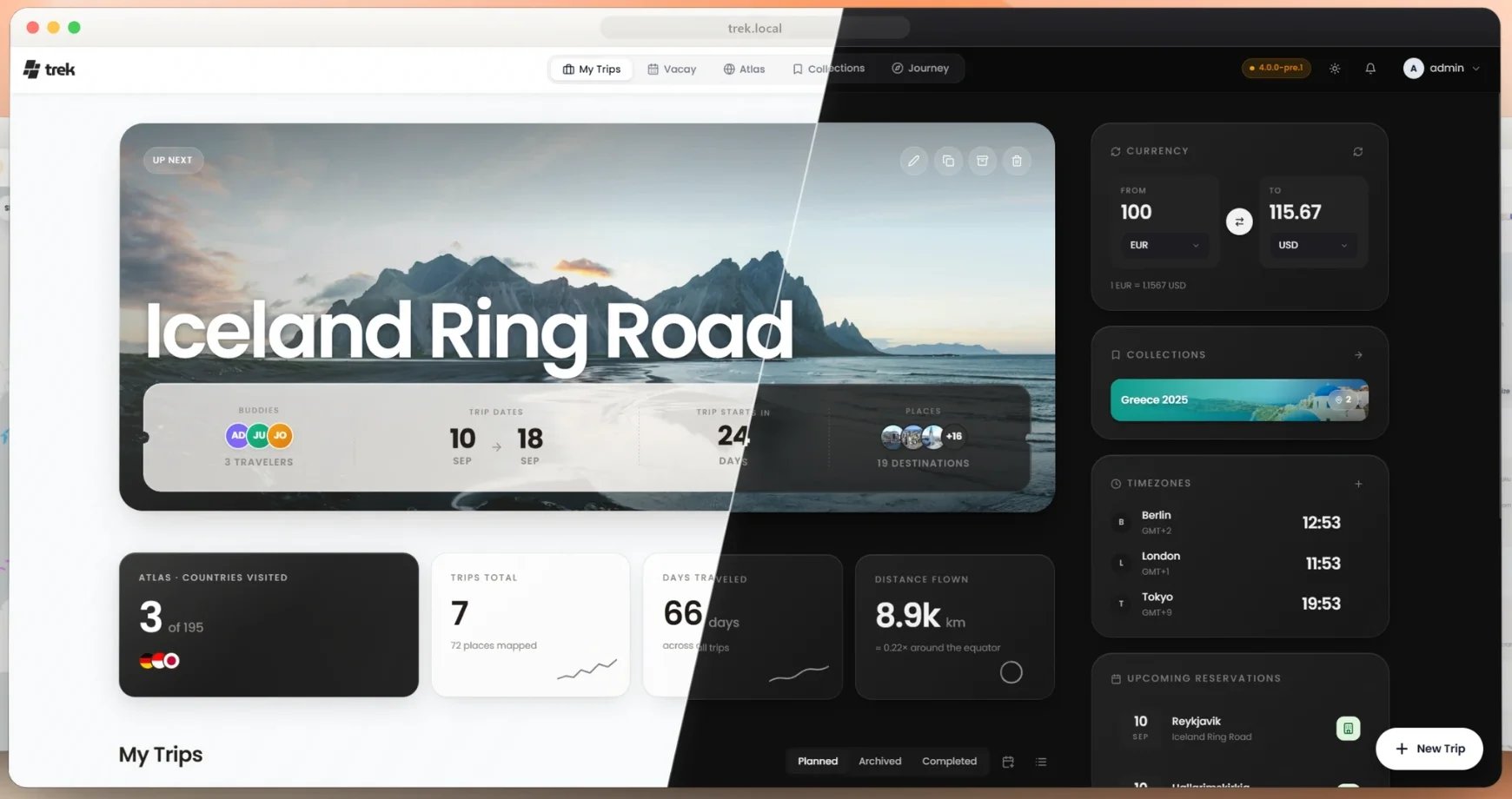
What TREK does for you
- Plan each day on a map, dragging places, notes and bookings between days; edits show up live for everyone on the trip.
- Gather your bookings, flights, trains and stays included, and import confirmations received as EML, PDF, PKPass or HTML, with a review step before anything is saved.
- Split costs equally or with custom shares, with several payers, one currency per expense at the rate frozen on entry, and settle-up suggestions.
- Prepare packing lists and to-dos, with templates, assignees and reminders.
- Control who gets in: OIDC sign-in, passkeys, TOTP two-factor authentication, invite links and scheduled backups.
At a glance
Install TREK on your VPS
Prerequisites: a Linux VPS with Docker and its Compose plugin, a domain name (heretrek.example.com) pointing to the VPS, and Caddy as the reverse proxy.
Create the service directory:
.env file, next to the Compose file, holds the values Compose reads through ${VAR}:
docker-compose.yml follows the one in the repository, hardening included (read-only filesystem, reduced capabilities). The image is pinned to 5.2.1, port 3000 is published on the VPS itself only, and the two HTTPS lines from the docs are switched on:
./data holds the SQLite database and the secrets, ./uploads the uploaded files. Those are the two directories to back up.
Start TREK and follow its first boot:
/ws, so the reverse proxy must accept those connections. Caddy does it out of the box and gets the Let’s Encrypt certificate on its own. This Caddyfile is the one from the README:
First steps
-
Sign in as admin. Without
ADMIN_EMAILandADMIN_PASSWORD, TREK creates theadmin@trek.localaccount on first boot with a random password, printed in the log:sudo docker logs trek. Openhttps://trek.example.comand sign in; TREK asks you for a new password right away. - Create your first trip. On the dashboard, click New Trip. Enter a title, the start and end dates, and the trip currency: every balance and settle-up is calculated in it.
- Invite your travel companions. In Admin → Users, Invite Links card, click Create Link. Pick the number of uses, the expiry and, under Add to trip, the trip to join: whoever registers through the link becomes a member straight away.
Check that it works
TREK exposes a health check on/api/health, the one the Compose healthcheck polls. Test it from the VPS:
sudo docker ps --filter name=trek should then show healthy in the status column. Finally, open a trip in two browsers: an edit made in one should appear in the other at once, which shows the WebSockets get through the proxy.
Secure access
The Compose file above publishes TREK on127.0.0.1 only: it can be reached through Caddy alone, over HTTPS. The README keeps COOKIE_SECURE=false for a trial over plain HTTP; do not add it behind HTTPS.
The console firewall adds a second barrier: allow inbound SSH and the ports 80 and 443 Caddy needs, nothing else.
So that only your guests can create an account, switch off Password Registration in Admin → Settings, Authentication Methods card: invite links keep working.
No account with the publisher is needed. By default, place search asks the TREK Places API (https://places.liketrek.com), and address search and routing go through the project’s services. To turn off those outbound calls to the project, add to environment::
Limits and alternatives
Without a Google Maps key, places carry no ratings or business photos, because no open dataset provides them. To search cover photos from a server, the docs recommend a free Unsplash key, set inUNSPLASH_ACCESS_KEY.
Going further
- TREK wiki: Docker Compose install, reverse proxy and updating
- Install Docker on your VPS
- VPS firewall: open only the ports you need
- Homebox: a home inventory on your VPS: another everyday tool to host on the same VPS